Projects
Milestones, tasks, My Work and the board.
The ideas
A task is one piece of work with a clear result: "Wall-jump animation set", "Intro dialogue: the Lighthouse Keeper". Each task has:
- a status: Planned, In progress, Blocked or Done;
- a discipline: Programming, Game Design, Writing, Art, Sound, Marketing, Operational or General;
- the people assigned to it;
- optionally a milestone, a due date, a description, a deliverable and links to other tasks.
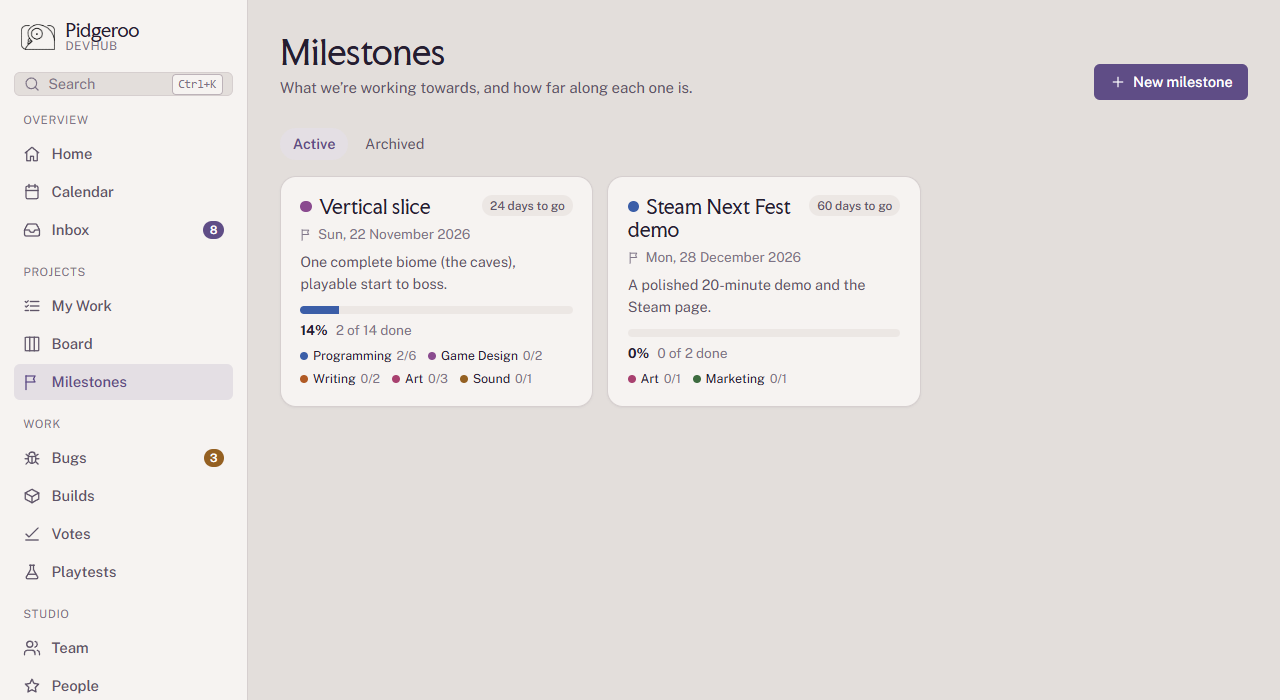
A milestone is a project or a larger deadline: a group of tasks working towards one goal and date, such as "Vertical slice" or "Steam Next Fest demo". Its page shows how far along it is, per discipline.
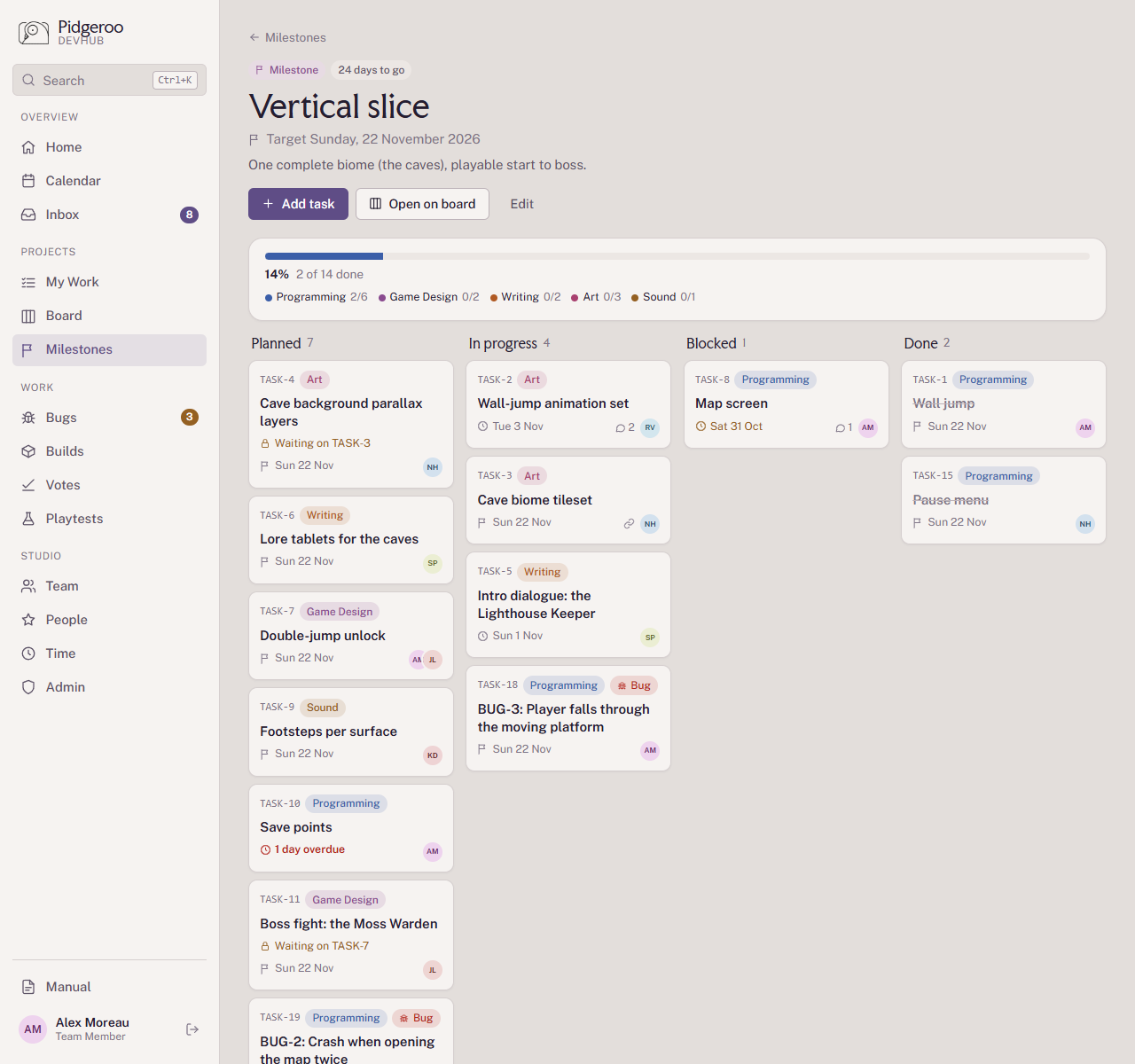
Open a milestone to see its tasks by status. From there, Add task creates a task already in that milestone.
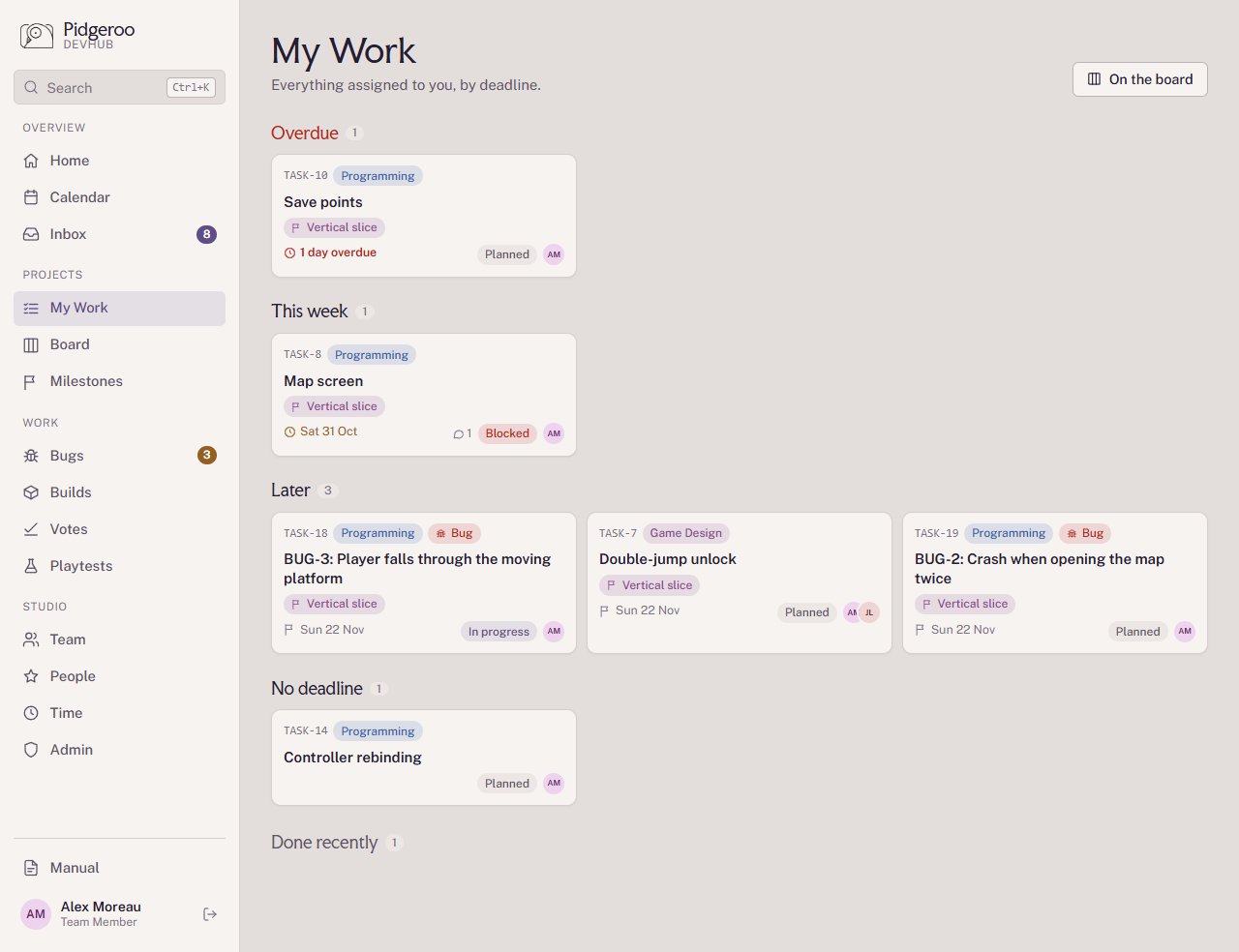
My Work
My Work is everything assigned to you, grouped by deadline: Overdue, This week, Next week, Later and No deadline. Finished tasks stay listed for two weeks.
The board
The Board shows the work everyone is doing, in four columns: Planned, In progress, Blocked and Done. Drag a card to another column to change its status, or use the small menu on the card. Done tasks stay on the board for 30 days.
Filter by milestone, by person and by discipline, or search by title or number
(TASK-12).
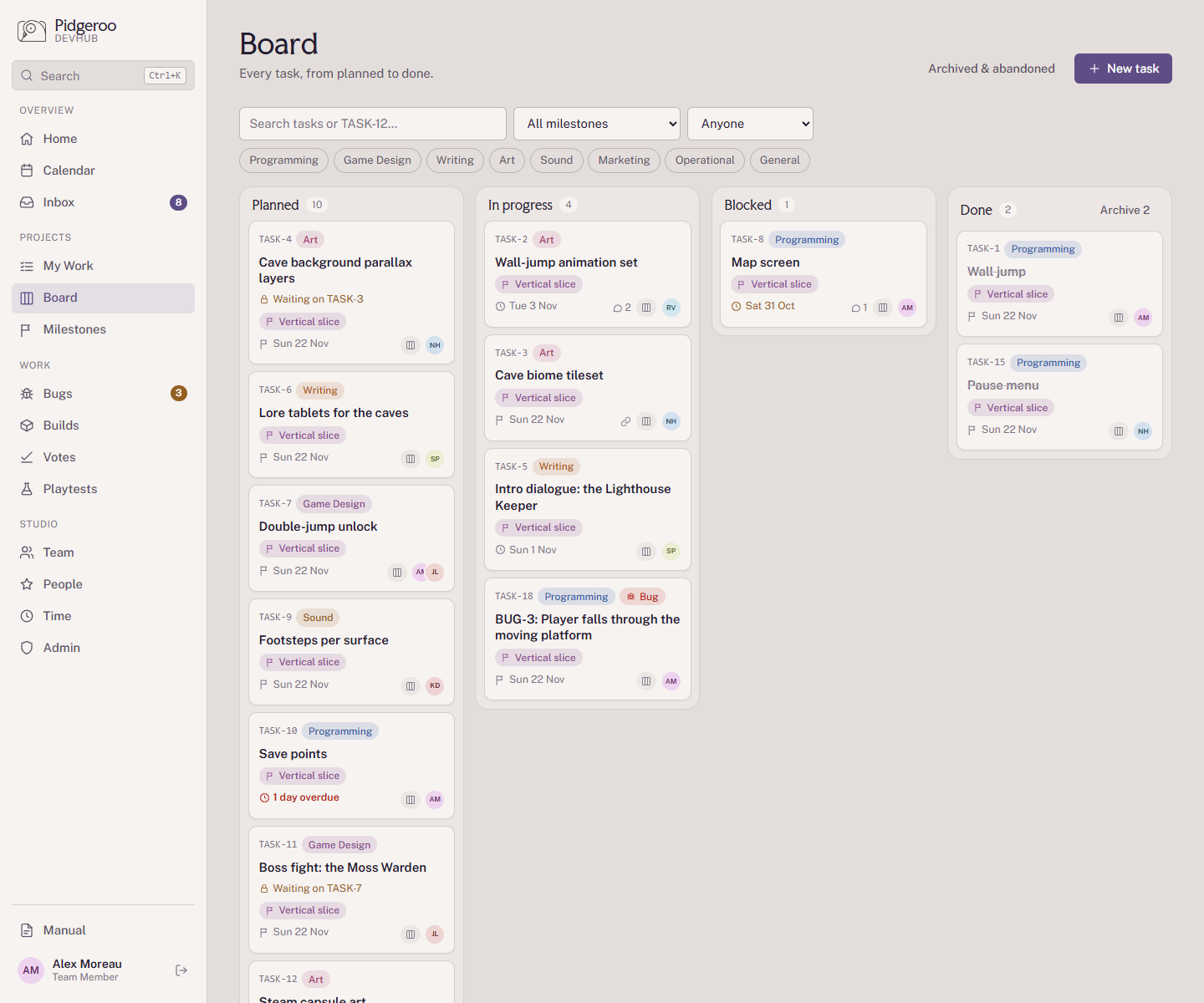
A task can only move to In progress once someone is assigned. If the last person is taken off an In progress task, it moves back to Planned.
A task's page
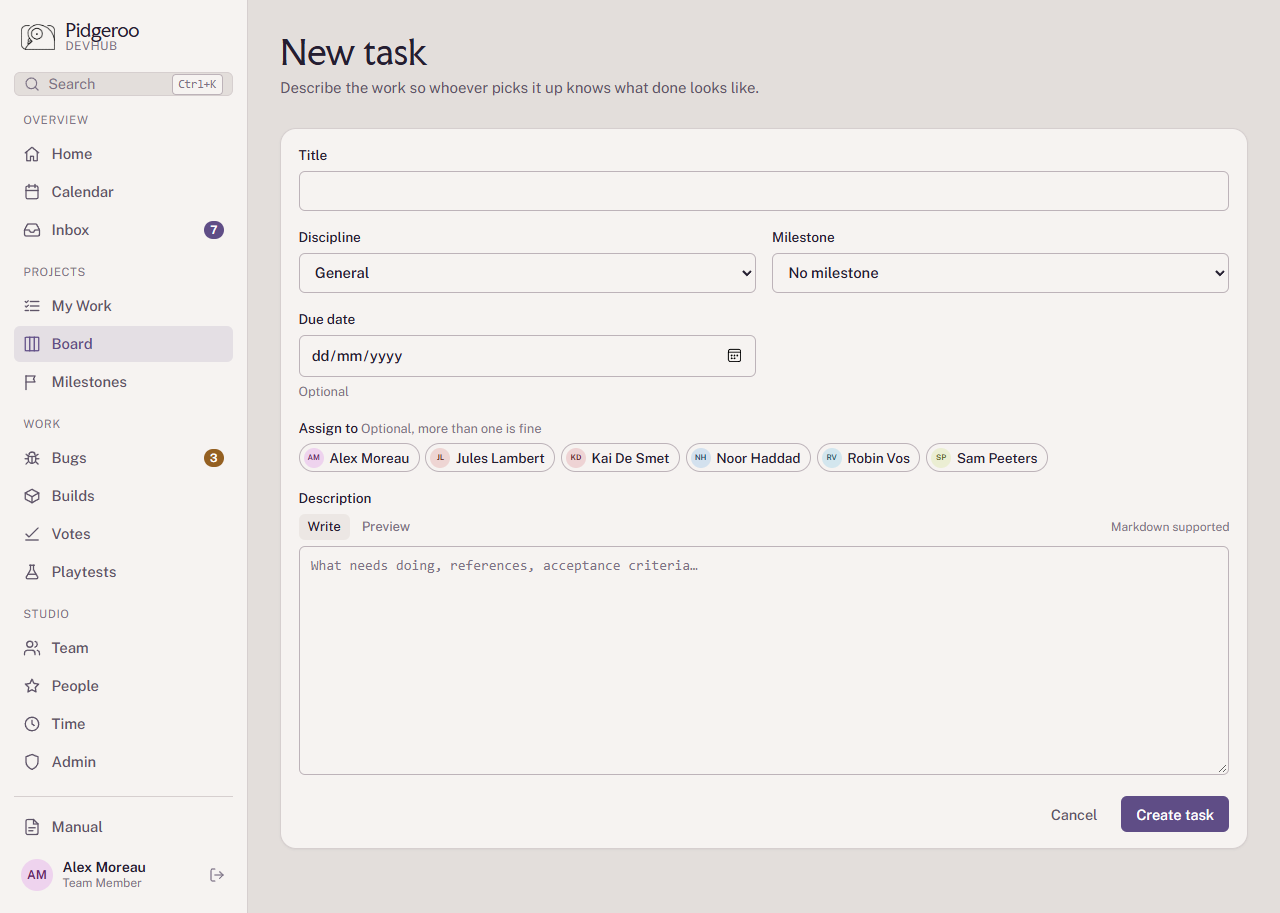
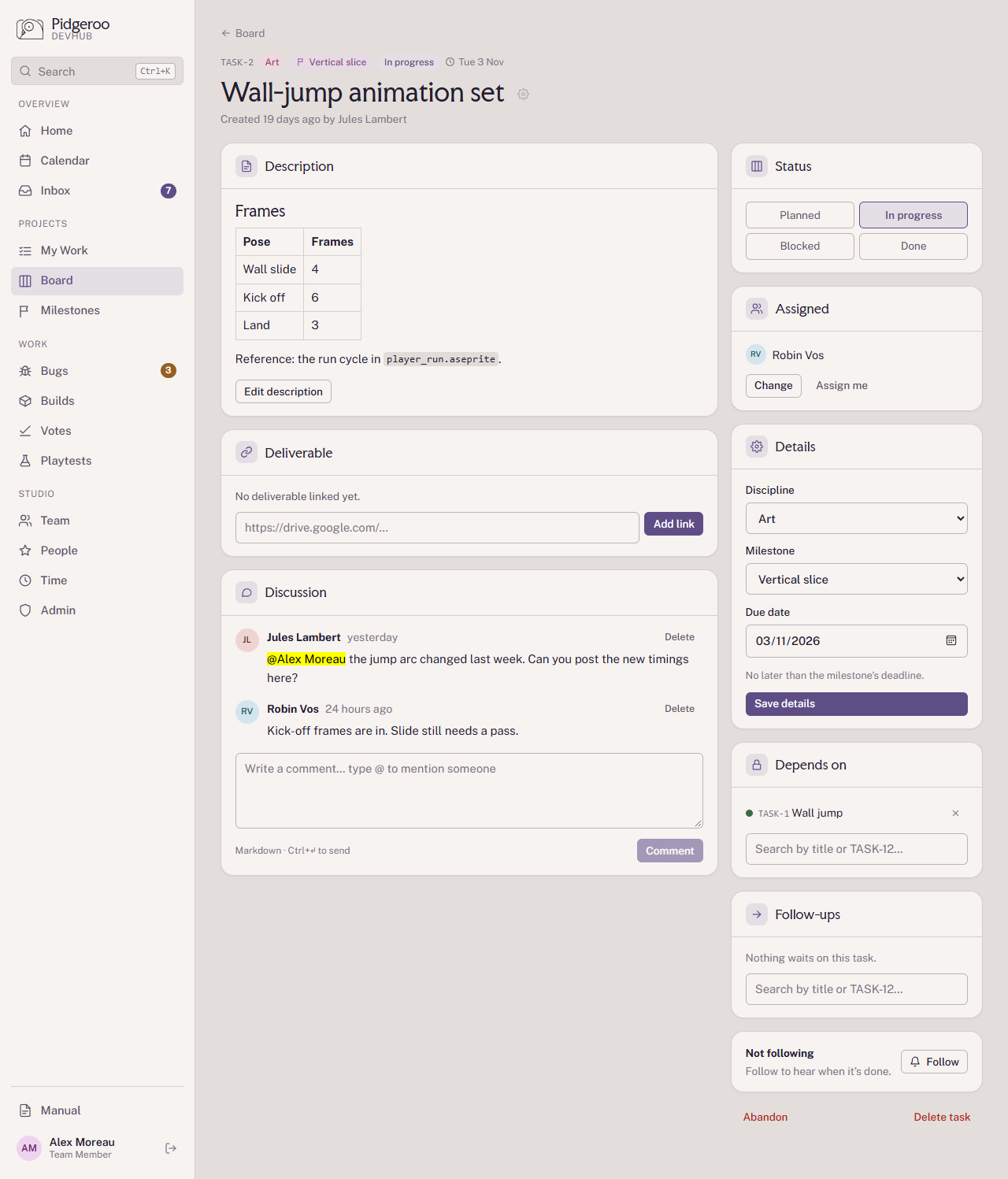
Create a task with New task on the board: a title, discipline, optionally a milestone, due date, the people to assign and a description. On the task's page you can change everything about it later.
Description and comments: Markdown
Descriptions and comments use Markdown. The most useful parts:
| You type | You get |
|---|---|
## Heading |
A heading |
**bold**, *italic*, ~~struck~~ |
bold, italic, |
- item or 1. item |
A bulleted or numbered list |
- [ ] to do, - [x] done |
A checklist (shows ticked or not; tick it by editing) |
[Figma file](https://…) |
A link |
 |
An image |
`code` and blocks between ``` |
Code |
| Pose | Frames | rows |
A table |
In a comment, type @ to mention a teammate. They get it in their inbox under
Discussion. Ctrl+Enter sends the comment.
Deadlines
A task's deadline is its own Due date. Without one, it uses the milestone's target date, shown as Milestone deadline.
If a task is part of a milestone, you can't set a due date later than the milestone's target date. The date picker stops at that date.
Deliverable
When the work produces something (a Figma file, a document in Drive, a build), paste the link under Deliverable. Everyone can then find the result from the task.
Depends on and Follow-ups
- Depends on: tasks that have to be finished before this one can start. While they aren't done, the task shows Waiting on TASK-….
- Follow-ups: tasks that wait on this one. Adding a follow-up is the same link, seen from the other side.
Example: "Cave background parallax layers" depends on "Cave biome tileset". When the tileset is marked Done, whoever is assigned to the parallax layers gets Ready to start in their inbox. Waiting on another task doesn't block its status; it's a signal, not a lock.
Follow
Follow a task to hear when it's done. You follow tasks you create or are assigned to automatically.
Who gets notified
| When | Who gets an inbox item |
|---|---|
| Someone is assigned to a task | The new assignee (Assigned) |
| A comment mentions someone with @ | The people mentioned (Discussion) |
| A comment is added | The task's other assignees (Discussion) |
| A task is marked Done | Assignees of its follow-ups (Ready to start), and its followers (Finished) |
| The deadline is today, tomorrow or the day after | The assignees (Due soon), once per deadline |
| The deadline has passed | The assignees (Overdue) |
Moving a task to In progress or Blocked doesn't notify anyone, and you're never notified about your own actions. Following a task tells you when it's done, not about every comment.
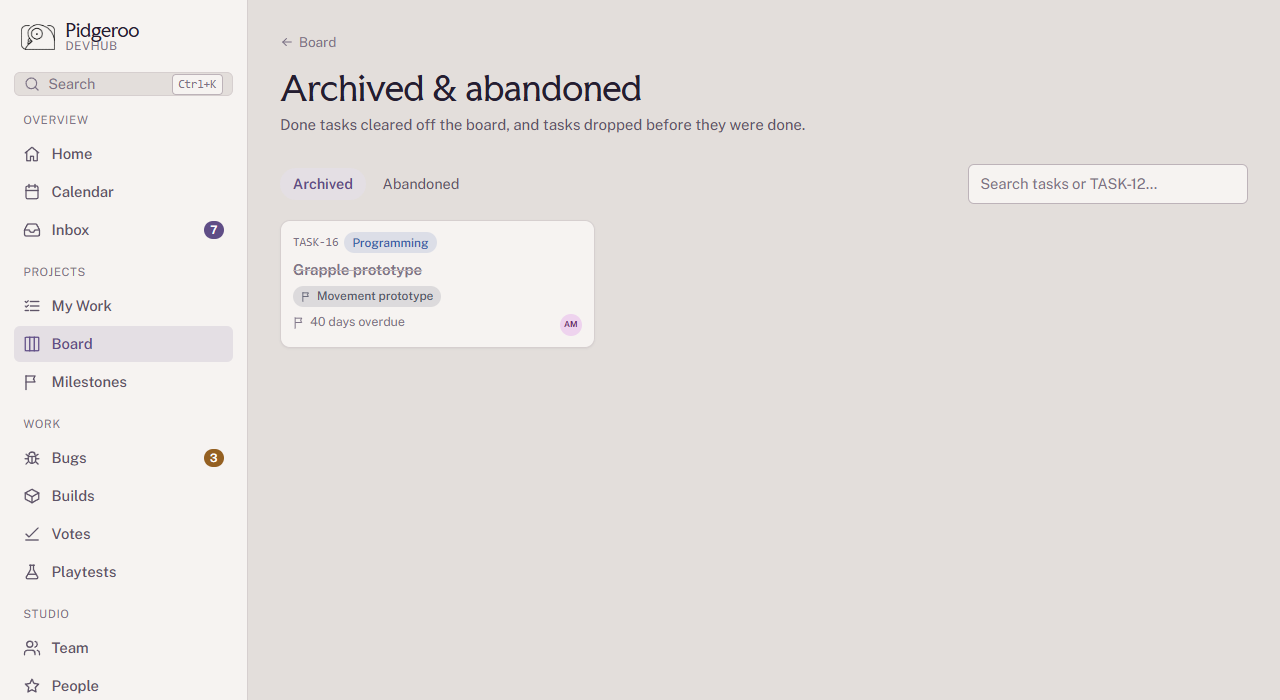
Archived and abandoned
Two ways to take a task off the board, for two different situations:
- Archived is for finished work. Only Done tasks can be archived. They still count towards their milestone. Use Archive on a done task, or archive all done tasks at once (see For developers). Archiving a milestone archives its done tasks too.
- Abandoned is for work that won't be done: the idea was dropped or replaced. Only unfinished tasks can be abandoned, by the person who created the task or an admin. An abandoned task no longer counts towards its milestone.
Both can be found again under Archived & abandoned on the board, and can be restored.